What the app is (and the one thing to understand first)
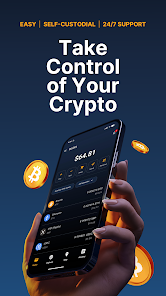
The CoinFlip Crypto Wallet is three products stapled together well: a self-custody wallet (keys on your phone — read our full custody audit if you haven't), an exchange on-ramp (buy/sell/swap inside the app), and a companion to the physical kiosks (live map of all 132 NZ machines, straight-to-wallet deposits). CoinFlip launched it in the US in mid-2024 and switched it on for Australia and New Zealand in November 2024 — the announcement framed NZ as a priority market off the back of 235% transaction growth here.
The one thing to internalise before tapping "Create Wallet": this app gives you a real vault, not an account. The recovery phrase it generates in the first two minutes is the only key that exists. Every step in our setup below is arranged around protecting that phrase, because in self-custody the setup is the security.
Downloading it safely (this step is where people get robbed)
Fake wallet apps are a top-three crypto attack vector worldwide. Cloned apps with stolen branding harvest recovery phrases, and they periodically slip past store review. Your protection is a boring, rigid routine:
- iOS: App Store → search
CoinFlip Crypto Wallet→ confirm the developer/seller is CoinFlip before installing. - Android: Google Play only. Never install a wallet APK from a link — not from an ad, a Telegram "support agent", a QR poster, or a site that looks exactly like the official one. Legitimate wallets don't distribute via chat message.
- Ideally, follow the store link from
coinflip.techtyped into your browser by hand. Search-engine ads above the organic results are a known phishing channel for wallet brands. - Check vitals before installing: substantial review count and history, developer's other apps, recent update date. A "CoinFlip" app published three weeks ago by a random studio is a trap.
Risk warning03 — SetupIf any app, site or human asks for an existing recovery phrase during "setup", "verification", "sync" or "support", it is a theft attempt — full stop. A genuine wallet asks you to write down a new phrase or restore your own from paper you hold. There is no third scenario.
Setting it up properly: the fifteen minutes that matter
Total honest time is about fifteen minutes, ten of which are the backup done right. Don't do this on the bus.
- Create the wallet, lock the app. Open the app → Create Wallet. Set a strong passcode (not your phone's PIN) and enable Face ID / fingerprint. This lock protects against a snatched unlocked phone — the most common physical attack in the real world.
- Write down the recovery phrase — on paper, twice. The app displays your words once with due ceremony. Copy them by hand onto two pieces of paper, in order, checking spelling. No screenshots, no cloud notes, no password managers synced to email, no photos "just temporarily". Two copies, because houses flood and drawers surprise you.
- Pass the verification honestly. The app quizzes you on random words. Do it from your paper, not from memory — you're testing the backup, not yourself.
- Split the copies geographically. One at home in a sealed envelope somewhere unexciting; one at a trusted family member's or in a deposit box. Anyone who finds a phrase owns the wallet — hide accordingly.
- Run a live-fire drill (optional, recommended). Receive NZ$20 of crypto, delete the app, reinstall, restore from paper. If your balance reappears, your backup provably works. That certainty is worth more than any feature in the app.
Every feature, field-tested
The bottom navigation gives you Wallet, Explore, Map and History. Here's what each verb actually does and what to watch for:
| Feature | What it does | Auditor's note |
|---|---|---|
| Buy | Purchase BTC, ETH, USDC, LTC, USDT with NZD via card/bank rails, delivered to your own keys | Check the all-in rate on the confirm screen against the spot price — the spread is the real fee. Full fee teardown here |
| Sell | Convert supported crypto back to NZD | Sell-side spreads apply; settlement speed depends on your bank |
| Send | Transfer to any external address via QR or paste | Verify the first and last 6 characters of the address, and always match the network. Clipboard-swapping malware is real |
| Receive | Shows your address + QR per asset/network | This is the QR you scan at a kiosk. Select the right asset before screenshotting an address for someone |
| Swap | Asset-to-asset conversion inside the wallet | Convenient; compare the implied rate against market before large swaps |
| ATM Map | Live map of all CoinFlip kiosks with directions | The killer feature for cash users — see our NZ locations guide for the regional breakdown |
| History | Unified log of app and linked ATM transactions | Contains the transaction IDs you'll need for any support case — learn where it lives before you need it |
| Support | 24/7 chat and phone, in-app | Genuinely responsive in our testing; remember support never needs your phrase |
What's deliberately not here: a dApp browser, staking dashboards, NFT galleries, ten thousand long-tail tokens. CoinFlip built a curated, hard-to-hurt-yourself wallet. Power users will feel the walls; the target user is safer inside them.
05 — The kiosk pipelineUsing the app with a CoinFlip ATM: the clean workflow
The app-plus-kiosk combination is CoinFlip's genuine differentiator in New Zealand, so here's the optimised routine we'd give a family member:
- At home: open the app → Receive → select the exact asset you'll buy (say BTC) → leave that QR ready.
- In the app's Map tab: confirm the kiosk is online and note whether it supports selling if you'll ever need cash-out.
- At the machine: pick the same asset on screen, scan your app's QR, feed notes, read the final rate, confirm. The crypto lands in keys you control — no custodial middle layer, which is exactly how kiosk buying should work.
- Afterwards: watch History for the incoming transaction and file the paper receipt until it confirms.
Mismatch between the asset selected on the machine and the QR you present is the classic kiosk error. The app reduces it by labelling QRs clearly per asset — but the final check is your eyes. For what the machine will charge you on top of spot, our ATM charges guide has worked NZD examples.
06 — When things wobbleTroubleshooting: the five real-world failures
1. "My transaction is pending forever." The app is a window onto the blockchain, not the blockchain. Grab the transaction ID from History, paste it into a public block explorer: if it's there, it's the network's queue, not a CoinFlip fault — congested Bitcoin blocks can take an hour. If it's not on the explorer at all after several minutes, contact in-app support with the ID.
2. "I can't log in." App access issues (passcode, biometrics, SMS codes for the trading features) are recoverable through support — that's account plumbing, not keys. Full walkthrough in the login troubleshooting guide.
3. "New phone, old wallet." Install the official app fresh, choose Restore, enter the phrase from paper. Never type a phrase into a website "restore tool" — those are 100% theft.
4. "The balance looks wrong." Usually a display/sync artefact after network switches or app updates: force-close, reopen, check another explorer against your address before panicking. The chain is the truth; the app is a viewer.
5. "A support agent contacted me first." No, they didn't. Outbound calls, DMs or emails offering "wallet migration", "validation" or "refunds" are scripts running on stolen contact lists. Real CoinFlip support answers when you ring the number on coinflip.tech; it doesn't cold-call.
Permissions and privacy: what the app knows about you
A wallet app sits at the intersection of your money and your phone, so its data appetite deserves the same audit as its custody model. Here's the honest inventory of what the CoinFlip Wallet reasonably touches and why:
- Camera — required, but only for QR scanning (addresses) and, if you verify identity for in-app purchases, document capture. It should activate visibly, only in those flows. An app requesting camera access at random moments is misbehaving; revoke and reinstall from the official store.
- Location — powers the ATM map's "near me" function. It's optional in the truest sense: deny it and the map still works by manual search. If you're privacy-conscious, "allow only while using" is the correct setting; the wallet functions never need your position.
- Contacts, microphone, photos — a self-custody wallet needs none of these. The official app doesn't demand them; any "CoinFlip" app that does is a clone with different intentions.
- Identity data — buying and selling through the app runs through AML-regulated rails, so those flows collect what the law requires (the same tiers as the machines — our login guide maps them). Pure hold/send/receive use never asks who you are; the blockchain doesn't care.
- On-chain visibility — remember that any wallet provider can see the public blockchain activity of addresses it generated, and so can everyone else on Earth; that's what public ledgers are. What CoinFlip cannot see is your keys, and what it doesn't hold it can't lose, leak or freeze.
Two hygiene habits complete the picture. First, review app permissions quarterly (Settings → Apps → CoinFlip Wallet) — thirty seconds to confirm nothing new crept in with an update. Second, keep the app updated: wallet updates ship security patches, and running a six-month-old version of anything that signs transactions is a bad habit with compound interest. Auto-update from the official store solves both.
08 — VerdictVerdict: who should install it
✔ Install it if
- You use or plan to use NZ CoinFlip kiosks — the integration is unmatched
- You want your first self-custody wallet with human support attached
- You hold mainstream assets and value simplicity over surface area
✘ Skip it if
- You live in DeFi, dApps or long-tail tokens (MetaMask/Trust Wallet fit better)
- You require open-source, community-audited wallet code
- You're storing sums that belong on a hardware wallet
As a piece of software, the app is exactly what it claims: an easy self-custody wallet with a cash pipeline bolted on. Treat the recovery phrase with the seriousness this page describes and it will serve you fine. Next stops: the deeper security audit, or current promos if you're about to make a first purchase anyway.
Frequently asked questions
Is the CoinFlip Wallet app available in New Zealand?
Yes. CoinFlip officially launched the app in Australia and New Zealand in November 2024, per the company’s announcement, and it is available on the Apple App Store and Google Play for NZ accounts.
Is the CoinFlip Wallet app free?
Download and wallet functions (hold, send, receive) are free apart from blockchain network fees. Buying, selling and swapping through the app carry CoinFlip’s service fees and exchange spreads — the app shows the all-in rate before you confirm.
Can I use the CoinFlip app without visiting an ATM?
Yes. The app works as a standalone self-custody wallet with in-app buy and sell. The ATM map is an optional feature — handy if you want to deposit cash, irrelevant if you don’t.
Why is my CoinFlip app transaction pending?
Send and receive speeds depend on the blockchain, not the app. Bitcoin transactions need network confirmations, which take roughly 10–60 minutes depending on congestion and the fee paid. Find the transaction ID in History and paste it into a block explorer — if it shows there, the network has it and no support ticket will speed it up.
Can I restore my CoinFlip Wallet on a new phone?
Yes — install the official app on the new device and choose Restore Wallet, then enter your recovery phrase. Your balances reappear because they live on the blockchain, not the phone. Without the phrase, restoration is impossible for anyone, including CoinFlip.
Does the CoinFlip app require ID verification?
Holding and transferring your own crypto does not. Buying and selling through the app does, because those are regulated exchange services under AML rules — expect identity checks similar to the ATM tiers.